Interface Options:
To set the default view for Recuva's results window, choose a view from the View mode drop-down box.
You can also choose to run Wizard mode at startup (select Show Wizard at startup), or switch to Wizard mode immediately (click Run Wizard).
To change Recuva's operating language, see the Language Options section below.
Update Options:
To automatically check for updates online, select Automatically check for updates to Recuva. You must have an active Internet connection for this option to work. In paid versions of Recuva, you also have the option to Enable silent background updates, allowing the software to autonomously update without notifying you, making the process entirely automatic.
Language Options:
Recuva can be run in 45 languages: Albanian, Arabic, Armenian, Azerbaijanii (Latin), Belarusian, Bosnian, Bulgarian, Català (Catalan), Ceský (Czech), Chinese (Simplified), Chinese (Traditional), Danish, Deutsch (German), English, Español (Spanish), Estonian, Français (French), Georgian, Greek, Hebrew, Hrvatski (Croatian), Indonesian, Italiano (Italian), Japanese, Kurdish, Latvian, Lietuviu (Lithuanian), Macedonian, Magyar (Hungarian), Nederlands (Dutch), Norwegian, Polski (Polish), Português do Brasil (Brazilian Portuguese), Romana (Romanian), Russian, Serbian (Cyrillic), Serbian (Latin), Slovak, Slovenian, Suomi (Finnish), Svenska (Swedish), Thai, Türkçe (Turkish), Ukrainian, and Vietnamese.
To change the language Recuva uses, start it in Advanced mode and click the Options button at right.
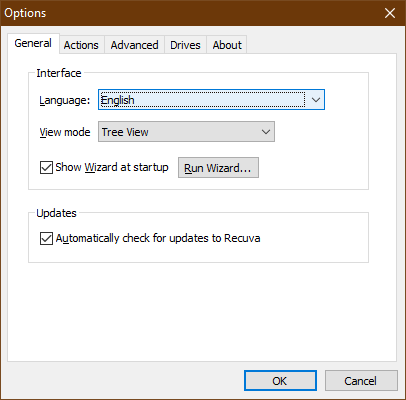 In the Options dialog box, select the language from the Language drop-down box.