Scanning Options:
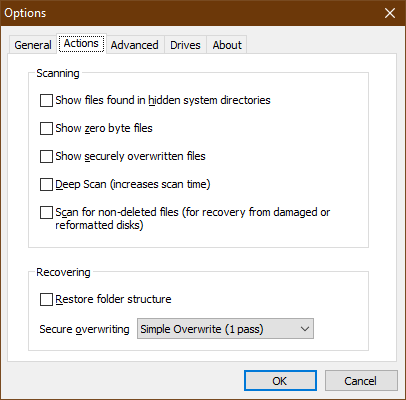
Use the following settings to determine which results Recuva displays:
| Setting | Notes |
|---|
| Show files found in hidden system directories | If you select this option, Recuva will display files from hidden system directories such as those in \WINDOWS\ and \Documents and Settings\. |
| Show zero-byte files | If you select this option, Recuva will show you files that have no content. These files cannot be recovered. |
| Show securely overwritten files | If you select this option, Recuva will list files it has securely deleted in the Results window. See this topic for more information on secure deletion.
Note: If you use CCleaner, it changes the filename to ZZZZZZZ.ZZZ when it securely deletes a file, for security reasons. |
| Deep Scan (increases scan time) | See this topic for more information. |
| Scan for non-deleted files | See this topic for more information. |
Recovery Options:
To restore the files in the same folders they were deleted from, select Restore folder structure.
For example, if you are recovering these files to E:\Recovery
- C:\test.txt
- C:\Word\sample.doc
- C:\Program\Install\install.bat
Using the restore folder structure option, they will be recovered as:
- E:\Recovery\test.txt
- E:\Recovery\Word\sample.doc
- E:\Recovery\Program\Install\install.bat
If you do not use the restore folder structure option, they will be recovered as:
- E:\Recovery\test.txt
- E:\Recovery\sample.doc
- E:\Recovery\install.bat
To determine how many times Recuva overwrites files when securely deleting them, select an overwrite option from the Secure overwriting drop-down box:
- Simple overwrite (1 pass)
- DOD 5220.22-M (3 passes)
- NSA (7 passes)
- Gutmann (35 passes)
The more times Recuva writes to that spot, the harder the file will be to recover by any means. For more information on the Gutmann method, see Wikipedia.